- [Home page](https://www.brimit.com/)
- [Blog](https://www.brimit.com/blog)

# Dive into Sitecore CDP - How to use AI connections (Web experience with Azure Cognitive Services)

[#How-to](https://www.brimit.com/blog?categories=#How-to) [DXP](https://www.brimit.com/blog?platforms=DXP)
[Sergey Baranov](https://www.brimit.com/blog/author?authors=Sergey%20Baranov) on November 6, 2021

There are 3 types of connections in **Sitecore CDP**:

1. ***Data System*** - can be used in Decision models as external source of data.
2. ***AI*** - can be used in Decision models as a logic block that performs any calculations on external service side.
3. ***Destination*** - can be used in Full stack experiences to send data to external services.

![Sitecore CDP - Connection types](https://www.brimit.com/-/media/project/brimit/blog/2021/x3mxray/4/connection_types.jpg)

In this article I`ll show how to create AI connection to **Azure Cognitive Face API** service and use it decision modeling to provide personalized offers to customers.

For my demo I`ll use customer photo to predict his age and gender and provide personalized offer based on this information.

*If you don`t have Azure account, scroll to the bottom of the article where I share links to my own Face API implementation that you can use instead of Azure Face API.*

#### How to get access to Azure Face APIs?

You need to login to your Azure account, find Face APIs in Azure services and create new one:

![Sitecore CDP AI - Azure Face API](https://www.brimit.com/-/media/project/brimit/blog/2021/x3mxray/4/add_face_api.jpg)

Free **Face APIs** service has some limitations like 20 requests per minute, so try to make requests in reasonable places *(user uploads/changes photo)*:

![Sitecore CDP AI - Azure limits](https://www.brimit.com/-/media/project/brimit/blog/2021/x3mxray/4/azure_limits.jpg)

When **Face APIs** service is created, navigate to **Keys and Endpoint** settings and copy one of the keys:

![Sitecore CDP AI - Face API keys](https://www.brimit.com/-/media/project/brimit/blog/2021/x3mxray/4/azure_keys.jpg)

#### How to setup AI connection in Sitecore CDP?

Login to your Sitecore CDP application account, Connections -&gt; Add Connection-&gt; AI. Enter Name and Description of your connection,  choose None on Athentification tab and configure request parameters:

- **Method**: POST
- **URI**:  [copy url](https://westeurope.api.cognitive.microsoft.com/face/v1.0/detect?returnFaceId=true&returnFaceLandmarks=false&returnFaceAttributes=age,gender&recognitionModel=recognition_04&returnRecognitionModel=false&detectionModel=detection_01&faceIdTimeToLive=86400)
- **Add header**: Ocp-Apim-Subscription-Key: your\_Azure\_KEY1\_or\_KEY2
- **Request**:

    ```

    {
      "url": "${url}"
    }

    ```

*${url}* variable will be subsctituted in Decision model with url of user photo. For **URI** endpoint chose closest one for your location from [Face API documentation](https://westus.dev.cognitive.microsoft.com/docs/services/563879b61984550e40cbbe8d/operations/563879b61984550f30395236).

![Sitecore CDP AI - Azure Face API request configuration](https://www.brimit.com/-/media/project/brimit/blog/2021/x3mxray/4/request_configuration.jpg)

Click **Test Now** button, insert any url with person photo and click **Run Test** button. If connection is OK, you will see response from Azure:

```

  "response": {
    "body": {
      "result": [
        {
          "faceId": "65d8afbb-96ab-477c-8100-a61a3c54235c",
          "faceRectangle": {
            "top": 100,
            "left": 140,
            "width": 196,
            "height": 196
          },
          "faceAttributes": {
            "gender": "female",
            "age": 23
          }
        }
      ]
    }

```

Once connection is ready, it is time to modeling. Create new Decision model and populate it with blocks like this *(**MS Face API** block is our created AI connection)*:

![Sitecore CDP AI - Decision model](https://www.brimit.com/-/media/project/brimit/blog/2021/x3mxray/4/decision_model.jpg)

For my demo I store customer photo in profile extended properties (see [this article](https://www.brimit.com/blog/cdp-3-how-to-pass-extended-data-to-sitecore-cdp) if you don`t know how to do it).

In **Extract photo** block I extract user photo url from profile extented properties and pass it to recently created MS Face API connection:

```

(function () {
 
 for (var i = 0; i < guest.dataExtensions.length; i++) { if (guest.dataExtensions[i].key === 'logo' ) {	 var photo = guest.dataExtensions[i].values;	 print(photo);	 return photo.url; }
 }

 throw new Error('Stop execution');
 
})();

```

Output for this block is: **url** - string.

![Sitecore CDP AI - Extract user photo](https://www.brimit.com/-/media/project/brimit/blog/2021/x3mxray/4/bloak_1.jpg)

In **Artificial Intelligence** block I just set **url** parameter from previous block as an input:

![Sitecore CDP AI - Artificial Intellicense](https://www.brimit.com/-/media/project/brimit/blog/2021/x3mxray/4/block2.jpg)

In **Parse AI result** block I parse AI response and provide output data in format *{age: 0, gender: 'male'}* to decision block:

![Sitecore CDP AI - Parse AI results](https://www.brimit.com/-/media/project/brimit/blog/2021/x3mxray/4/block3.jpg)

Before continue with decision we need to create Offers for our future experience. Navigate to **Library -&gt; Offer Templates** and create new one:

![](https://www.brimit.com/-/media/project/brimit/blog/2021/x3mxray/4/offer_template.jpg)

I will use this attributes to substitute offer values in my web experience *(corner popup window)*.

Next, navigate to **Decisioning -&gt; Offers** and create offers based on your offer template *(as much as you need)*. In my example I create 2 offers: one for women with age in range 25-35, the second one for retiree customers. Example of offer:

![Sitecore CDP AI - Offer](https://www.brimit.com/-/media/project/brimit/blog/2021/x3mxray/4/offer.jpg)

When offers are ready it is time to come back to our decision model and configure last **Suggest Offer** block:

![Sitecore CDP AI - Decision model block](https://www.brimit.com/-/media/project/brimit/blog/2021/x3mxray/4/block4.jpg)

**Column settings**:

***Age***. **Format**: Expression, **Column Input**: result.age, Type: integer.

***Gender***. **Format**: Expression, **Column Input**: result.gender, Type: string.

***Offer***. **Format**: Offer, **Choose Offer Template**: your recently created offer template.

Configure rules logic that your need for your offers.

Decision model is ready and you can test it with **Test Canvas** tool:

![Sitecore CDP AI - Test decision model](https://www.brimit.com/-/media/project/brimit/blog/2021/x3mxray/4/test_decision.jpg)

The last thing to do is create Web experience. Navigate to **Experiences -&gt; Web** and create new one. In *Decisioning* section link to created decision model and setup other sections how you need. In *Content* section choose predefined template **"Corner Popup"** and replace **Image URL**, **Title**, **Description**, **CTA destination URL** parameters with offer template variables:

![Sitecore CDp AI - Web experience configuration](https://www.brimit.com/-/media/project/brimit/blog/2021/x3mxray/4/popup_substitution.jpg)

Go to "Advanced Edit" and configure variables:

#### API tab *(Freemarker)*:

```

{
<#if (offers)??>
  "decisionOffers": ${toJSON(offers)},
</#if>
}

```

#### HTML tab:

```

{{#decisionOffers}}
  {{#attributes}}
    <div class="img-container">
        <div class="img-container__image" style='background-image: url("{{imageUrl}}");'></div>
    </div>
    <div class="bx-transition-card__body">
       
        <h3>[[Title | string | {{title}} | {required:true, group: Title, order: 1}]]</h3>
        <p>[[Description | text | {{description}} | {required:true, group: Description, order: 1}]]</p>
        <div class="options-container">
            <a id="bx-transition-card--secondary" class="options-container__secondary">[[Dismiss Text | string | No Thanks | {required:true, group: Secondary Button, order: 1}]]</a>
            <a id="bx-transition-card--primary" class="options-container__primary" href="{{linkUrl}}">[[CTA Text | string | Yes Please | {required:true, group: CTA Button, order: 1}]]</a>
        </div>
    </div>
    {{/attributes}}
{{/decisionOffers}}

```

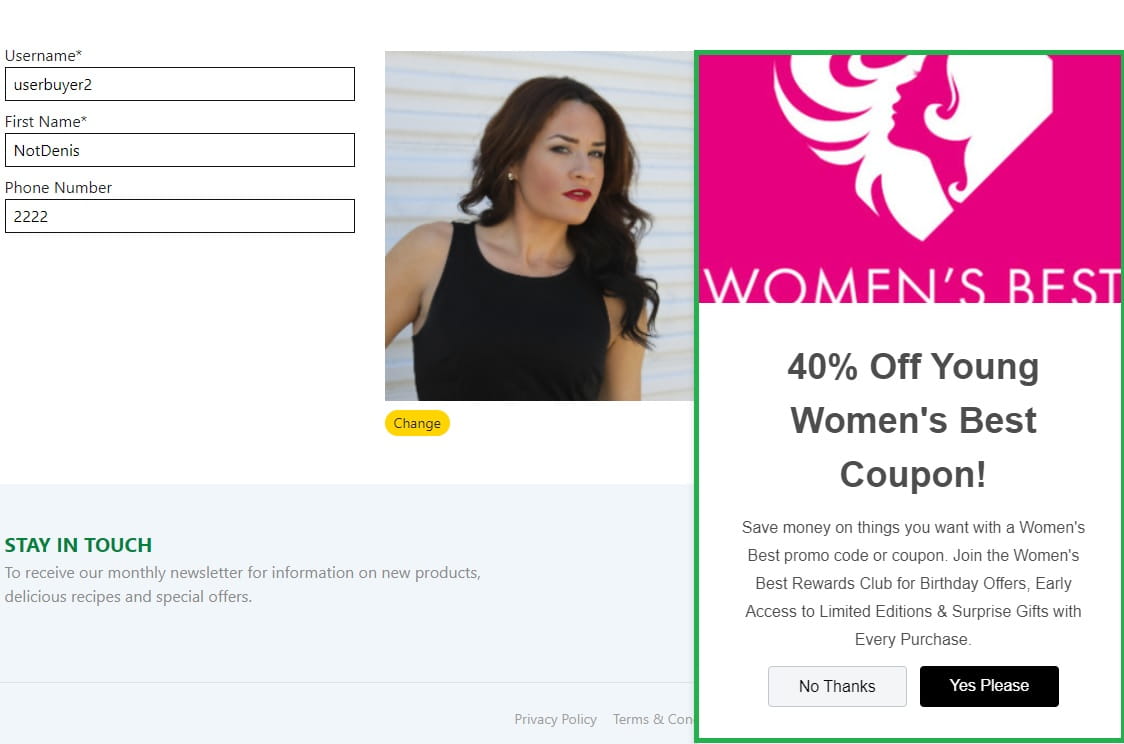
Demo is ready! Start Web experience, login to website and populate guest photo - you will see personalized offer if user matched decision criteria:

![Sitecore CDP AI - Demo](https://www.brimit.com/-/media/project/brimit/blog/2021/x3mxray/4/demo.jpg)

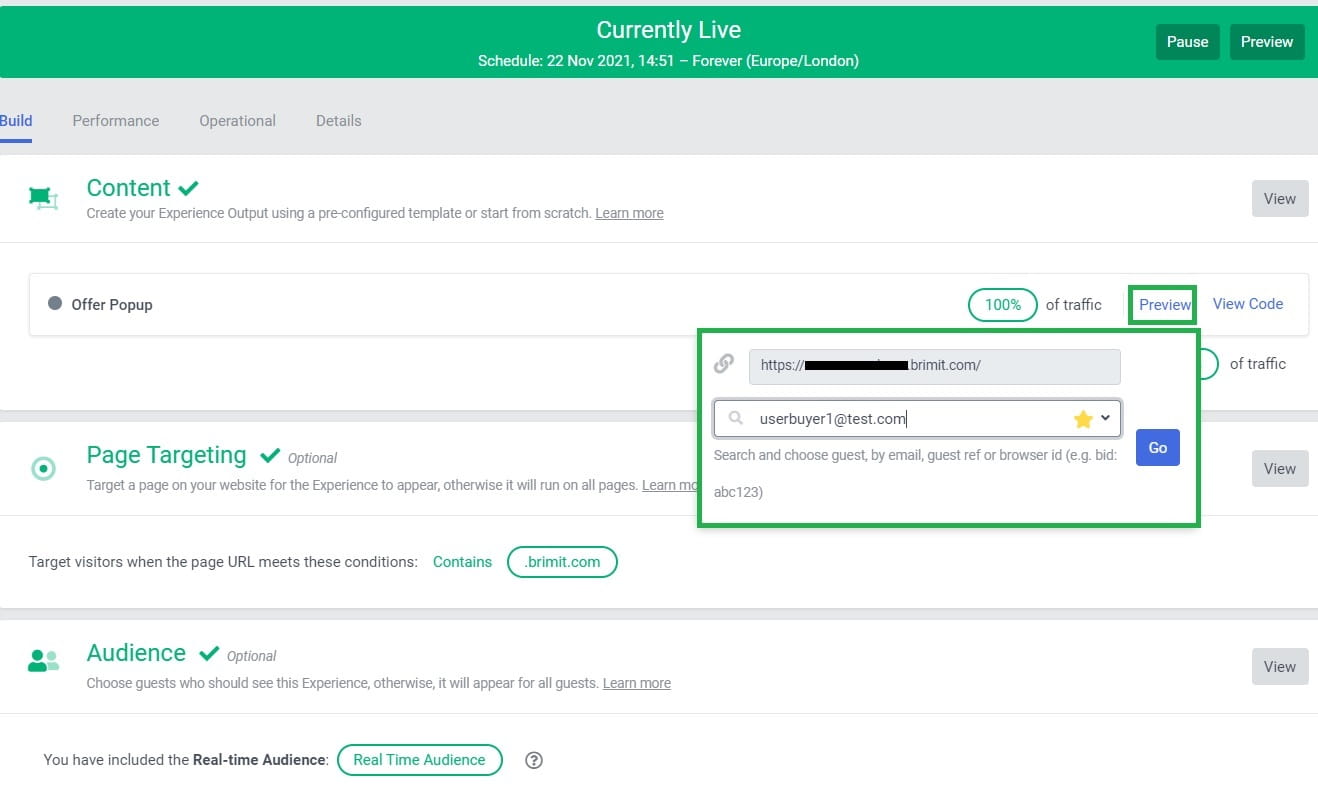
If you don`t see popup-offer you can debug your experience. Click on **Preview** button and populate inputs with your demo page and context user:

![Sitecore CDP AI - Debug](https://www.brimit.com/-/media/project/brimit/blog/2021/x3mxray/4/debug_1.jpg)

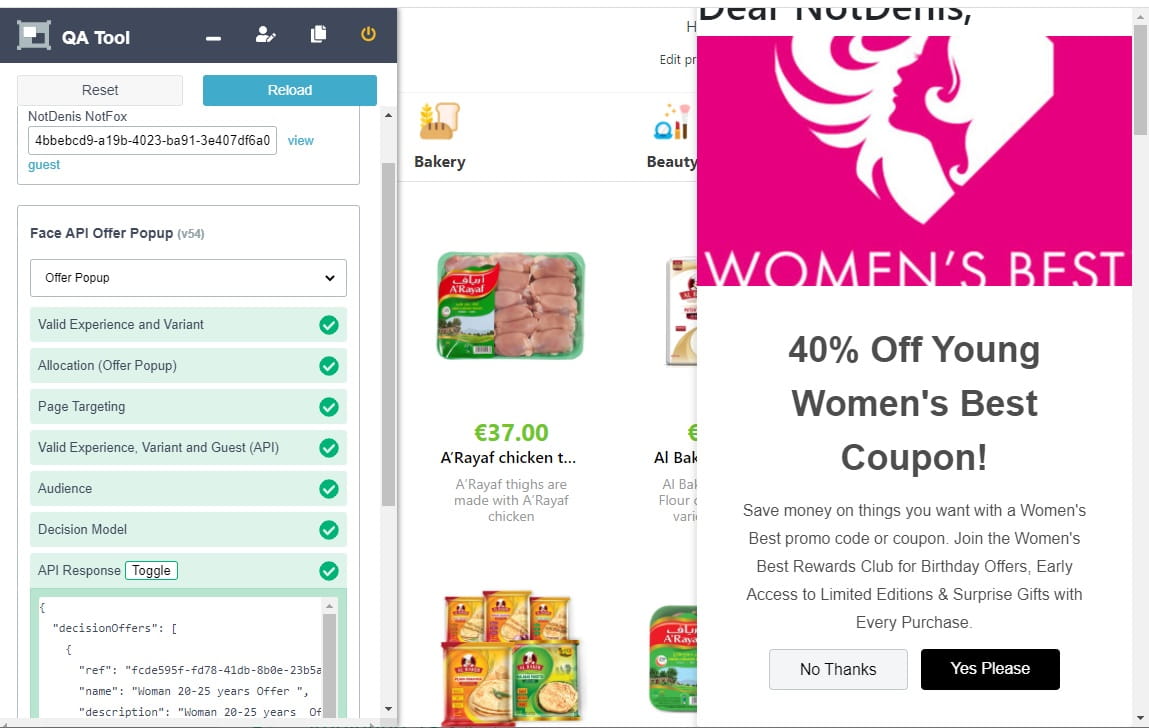
In **QA Tool** you will see detailed response with validators and it can be useful for troubleshooting:

![Sitecore CDP AI - Demo](https://www.brimit.com/-/media/project/brimit/blog/2021/x3mxray/4/demo2.jpg)

#### See also:

My meetup demo about Sitecore CDP and custom AI service:

[https://www.youtube.com/watch?v=iGLMDlItv58](https://www.youtube.com/watch?v=iGLMDlItv58)

Source code of custom Age/Gender ML service is available on [my Github](https://github.com/x3mxray/Sitecore.CDP.ML).

Here goes the table of contents for my Sitecore CDP blog series:

- [Introduction](https://www.brimit.com/blog/cdp-0-intruduction)
- [How to connect Sitecore CDP to website](https://www.brimit.com/blog/cdp-1-how-to-connect-to-website)
- [Debugging tools](https://www.brimit.com/blog/cdp-2-debugging-tools)
- [How to pass extended data to Sitecore CDP](https://www.brimit.com/blog/cdp-3-how-to-pass-extended-data-to-sitecore-cdp)
- [How to use Data System connections (Decision model with Content Hub products)](https://www.brimit.com/blog/cdp-5-how-to-use-data-system-connections)
- How to use AI connections (Web experience with Azure Cognitive Services)
- [How to use Destination connections (Triggered experience webhook)](https://www.brimit.com/blog/cdp-6-how-to-use-destination-connections)
- How to use External service connections (Flows with External Service)
- Remarketing with Sitecore CDP and Facebook Ads

###### Author


![sergey-200](https://www.brimit.com/-/jssmedia/feature/blogs/authors/sergey-200.jpg?h=197&iar=0&w=200&hash=0D636570F87F1C13C39E06EB19D9DF06)

Sergey Baranov

Sitecore MVP/ Senior Sitecore Developer
[Sergey Baranov](https://www.brimit.com/blog/author?authors=Sergey%20Baranov)

###### More By Categories

[#Events](https://www.brimit.com/blog?categories=#Events) [#How-to](https://www.brimit.com/blog?categories=#How-to) [#News](https://www.brimit.com/blog?categories=#News) [#Guides](https://www.brimit.com/blog?categories=#Guides)

###### More by Platform

[Data and AI](https://www.brimit.com/blog?platforms=Data%20and%20AI) [DXP](https://www.brimit.com/blog?platforms=DXP) [E-commerce](https://www.brimit.com/blog?platforms=E-commerce) [Internet of Things](https://www.brimit.com/blog?platforms=Internet%20of%20Things) [Sales and marketing automation](https://www.brimit.com/blog?platforms=Sales%20and%20marketing%20automation)

#### More on Sitecore

![How Vercel Will Help You Save Effort When Deploying Sophisticated Sitecore Projects](https://www.brimit.com/-/jssmedia/project/brimit/blog/2024/vercel_cover-image.png)
#Guides #How-to DXP E-commerce

##### How Vercel Will Help You Save Effort When Deploying Sophisticated Sitecore Projects

Optimize and accelerate the development and deployment of complex multisite Sitecore projects.

Alexei Vershalovich on July 17, 2024
[How Vercel Will Help You Save Effort When Deploying Sophisticated Sitecore Projects](https://www.brimit.com/blog/how-vercel-will-help-you-save-effort-when-deploying-sophisticated-sitecore-projects)

![Training Up Tomorrow's Sitecore MVPs: a Mentoring Success Story](https://www.brimit.com/-/jssmedia/project/brimit/blog/2023/sitecore-mentoring---cover-image.png)
#How-to DXP

##### Training Up Tomorrow's Sitecore MVPs: a Mentoring Success Story

How to participate in the Sitecore Mentor program and help younger colleagues jump-start a career in Sitecore development.

Sergey Baranov on October 2, 2023
[Training Up Tomorrow's Sitecore MVPs: a Mentoring Success Story](https://www.brimit.com/blog/training-up-tomorrows-sitecore-mvps)

![Going Headless. Part 2: When a Headless CMS Is Your Best Bet (if you have Sitecore)](https://www.brimit.com/-/jssmedia/project/brimit/blog/2022/headless/adobestock_456986731.jpg)
#How-to DXP E-commerce

##### Going Headless. Part 2: When a Headless CMS Is Your Best Bet (if you have Sitecore)

Discover how a headless CMS can benefit organizations that use Sitecore.

Daniil Raschupkin, Palina Trokhautsava on September 15, 2022
[Going Headless. Part 2: When a Headless CMS Is Your Best Bet (if you have Sitecore)](https://www.brimit.com/blog/going-headless-part-2-when-a-headless-cms-is-your-best-bet-if-you-have-sitecore)
